
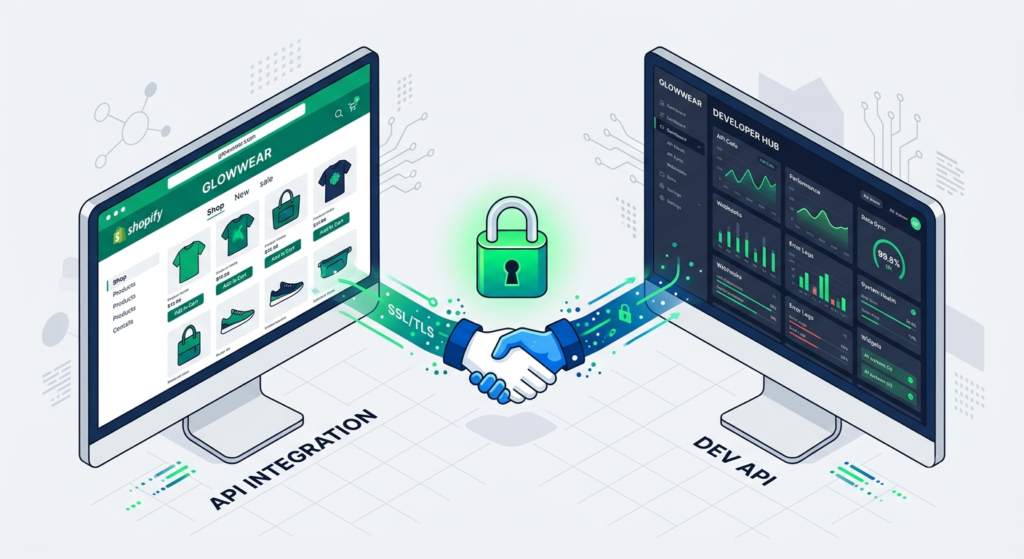

Managing a growing e-commerce business often means you cannot do everything alone. Whether you are hiring a new customer service representative, an SEO expert, or a web development agency, you will eventually need to share access to your store. But how do you do this securely? Sharing your personal password is a major security risk and violates best practices.
This comprehensive guide will explain exactly how to manage Shopify store access. We will explore how to give access to users on Shopify, the importance of Shopify user permissions, and how a Shopify Partner account works to safely grant Shopify Partner access to developers and agencies.
By the end of this guide, you will understand the exact steps to securely manage your store’s backend without compromising your sensitive data.
1. How do I give access to users on Shopify?
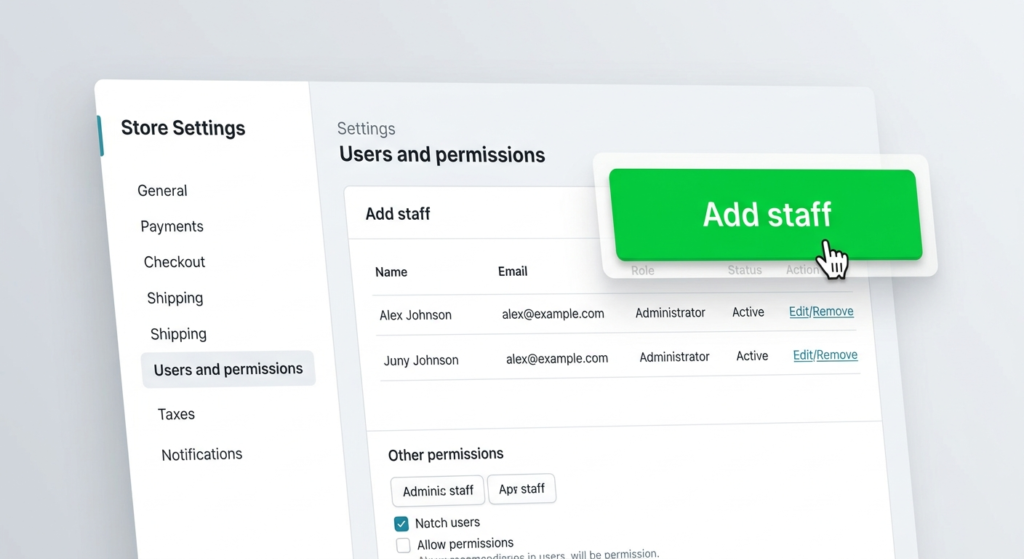
To give access to users on Shopify, the store owner must navigate to the ‘Settings’ menu in the Shopify admin, select ‘Users and permissions’, and click ‘Add staff’. From there, you can enter the user’s email address, select the specific permissions they need, and send them an email invitation to create their own secure login.
Understanding how to give access to users on Shopify is fundamental to scaling your team securely. Giving a user their own login—often referred to as Shopify staff access—ensures that everyone has unique credentials.
Step-by-Step Guide to Adding a User
- Log in as the Store Owner: Only the store owner or users with appropriate admin privileges can invite new staff.
- Navigate to User Management: Look at the bottom left corner of your Shopify admin dashboard and click on Settings. Next, click on Users and permissions.
- Invite the User: Click the Add staff button. You will be prompted to enter the new user’s first name, last name, and email address.
- Select Permissions: This is a critical step. Check the boxes next to the specific areas of the store this person needs to access (e.g., Orders, Products, or Customers).
- Send Invite: Click Send invite. The invited user receives an email containing a link to accept the invitation and set up their personal password.
Employee Access vs. Developer/Agency Access
When granting access, it is important to distinguish between internal employees and external contractors.
- Employees: Internal team members (like marketing managers or fulfilment staff) should be given standard Shopify staff access.
- Developers and Agencies: External professionals should ideally use Shopify collaborator access. Instead of taking up one of your limited staff account slots, they request access via their own Shopify Partner account.
Note: Shopify’s admin interface and terminology undergo regular updates. Readers should verify the exact menu names and pathways shown in their current Shopify admin, as they may differ slightly from this guide.
If you need professional help, our Shopify Development Services can help you build and customize your store.
Click here
2. How to request collaborator access on Shopify?
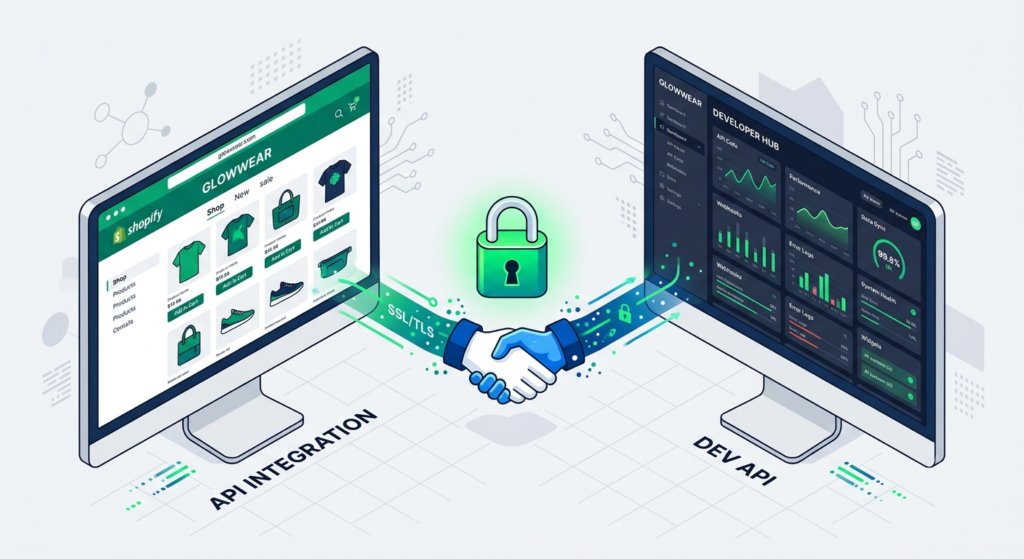
To request collaborator access on Shopify, an agency or developer must log into their Shopify Partner dashboard, click on ‘Stores’, and select ‘Add store’. They then choose ‘Managed store’, enter the client’s store URL, select the required permissions, and send the request for the store owner to approve.
Shopify collaborator access is a specialized access method designed specifically for external freelancers, agencies, and developers. It allows them to work on your store without consuming your plan’s allotted staff accounts.
The Request Process Explained
- Who requests it: The external developer, designer, or agency initiates the request using their Shopify Partner account.
- How it is requested: The Partner navigates to their dashboard, adds your store’s unique
.myshopify.comURL, checks off the specific permissions they need to complete their job, and submits the request. - What the store owner receives: You, as the store owner, will receive an email notification stating that a Shopify Partner is requesting access. You will also see a notification in your Shopify admin under the Users and permissions section.
- How to approve or reject: By clicking on the request in your Shopify admin, you can review the specific permissions the collaborator is asking for. If everything looks correct, you click “Accept request”. If you do not recognize the sender or the permissions are too broad, you can simply reject it.
Why Collaborator Access is Preferable
Using collaborator access is vastly superior to asking for or sharing the store owner’s password. It keeps your primary credentials secure, ensures accountability because actions are logged under the collaborator’s specific name, and allows you to revoke their access instantly with a single click once their contract or project is complete.
3. How to give limited access in Shopify?
You can give limited access in Shopify by carefully selecting specific checkboxes under the ‘Permissions’ section when inviting a staff member or approving a collaborator. By unchecking areas like ‘Settings’ or ‘Apps’, you restrict the user to only the sections of the store they absolutely need to do their job.
Understanding how to give limited access in Shopify is essential for maintaining robust store security. Shopify user permissions allow store owners to strictly control what information employees and collaborators can see and edit.
Understanding Available Permissions
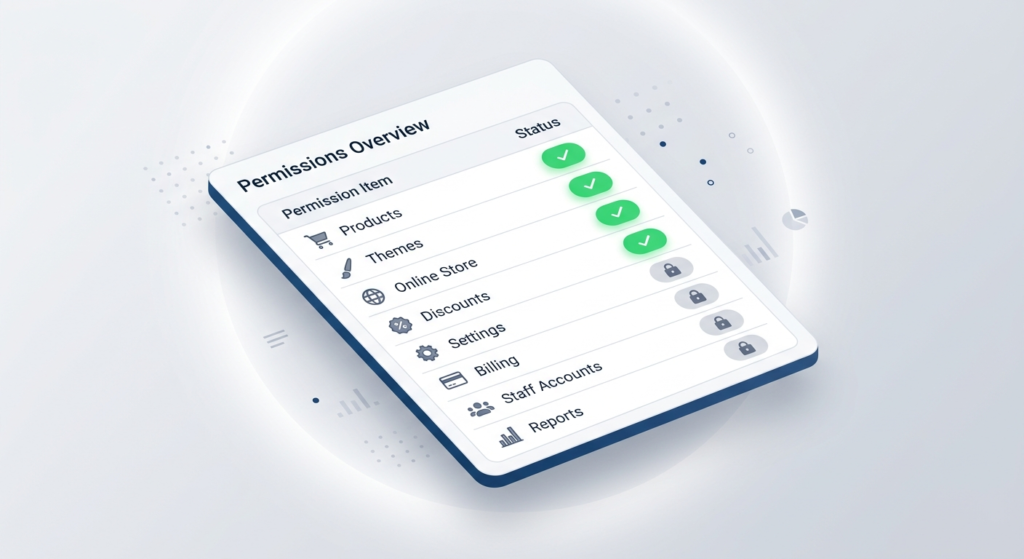
When managing Shopify permissions, you can grant or restrict access to numerous functional areas:
- Products: Allows viewing, creating, and editing inventory and product listings.
- Orders: Permits fulfilling orders, creating draft orders, and viewing order history.
- Customers: Gives access to customer data, purchase histories, and contact information.
- Analytics: Grants visibility into store performance, sales reports, and visitor metrics.
- Marketing: Allows the creation and management of discount codes, campaigns, and marketing apps.
- Online Store: Grants the ability to edit navigation, pages, and blog posts.
- Themes: Allows editing the store’s code and theme customizer settings.
- Apps: Permits the user to open, install, or manage third-party applications.
- Settings: The most sensitive area; allows changes to billing, payment providers, shipping rates, and legal policies.
The Principle of Least-Privilege Access
In cybersecurity, “least-privilege access” means giving a user the bare minimum permissions required to perform their specific tasks. This minimizes the risk of accidental deletions, unauthorized data exports, or malicious activities.
Practical Examples of Limited Access
- Product Listing Person: Give them access only to Products and Inventory. They do not need to see your Analytics or Settings.
- Web Designer: Give them access to Online Store and Themes. They generally do not need access to your Customer data or Orders.
- SEO Professional: Grant them access to Marketing, Online Store (for blogs and meta descriptions), and Analytics.
- Agency: For a specific project, carefully review the Shopify agency access request. If they are just installing a chat widget, they only need access to Apps and Themes, not your financial Settings.
Note: Please be aware that available permissions can depend on your specific Shopify plan, account type, role, and Shopify’s current feature set. Not all plans offer the exact same granular permission capabilities.
4. Can two people share a Shopify account?
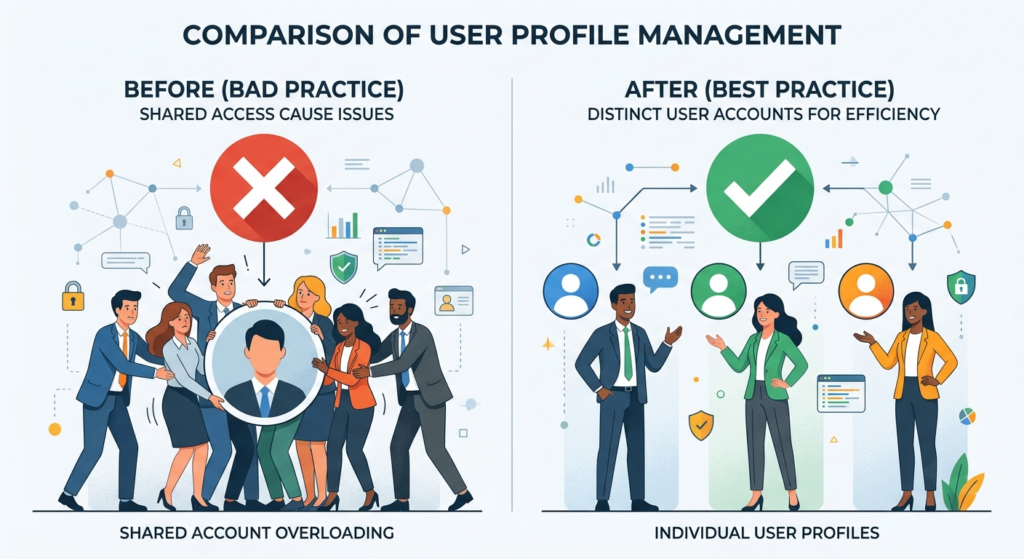
While two people technically can share a single Shopify account by using the same email and password, it is highly discouraged due to security and operational risks. It is strongly recommended that every individual is granted separate user accounts with distinct logins.
The difference between sharing a login and using separate accounts is significant. When two people use the same login credentials, the system treats them as one entity. When they have separate user accounts or when a Shopify Partner accesses the store via a collaborator account, the system identifies them individually.
The Benefits of Separate User Accounts
- Better Security: Sharing passwords increases the likelihood of a credential leak. Separate accounts allow you to enforce Two-Factor Authentication (2FA) for everyone.
- Individual Permissions: You cannot restrict access if everyone uses the owner’s login. Separate accounts allow you to tailor permissions to each person’s role.
- Accountability: When an error occurs (e.g., a product is deleted or an order is incorrectly refunded), the store’s timeline will show exactly which user account performed the action. Shared logins make this impossible to track.
- Easier Access Removal: If an employee or contractor leaves, you can simply delete their individual account in one click. If you share a password, you must change your master password and re-distribute it to the remaining team members.
- Better Team Management: Distinct accounts provide a clean, professional way to manage a growing business without bottlenecking operations.
5. What is Shopify Partner access?
Shopify Partner access refers to the secure method by which verified Shopify Partners—such as developers, designers, and marketing agencies—connect to a merchant’s store. They do this using ‘collaborator accounts’, which allow them to work on the store backend without needing a standard staff account or the owner’s password.
To understand this, you must first know what Shopify Partners are. The Shopify Partner programme is a network of trusted professionals who build businesses around Shopify. This includes freelance web developers, specialized design agencies, and app creators.
How Developers and Agencies Work with Stores
When you hire a professional for Shopify developer access, they do not usually ask you to create a staff account for them. Instead, they use their Partner Dashboard to send a collaborator request.
- Collaborator Accounts: These are special access points that link the Partner’s external dashboard directly to your store’s admin panel, pending your approval.
- Why Agencies Use It: It is standard industry practice. It allows agencies to manage multiple clients from a single, centralized Partner dashboard without having to juggle dozens of separate usernames and passwords for different stores.
- The Difference from Merchant Access: A merchant’s store access is strictly for managing the day-to-day retail operations of that specific business. A Partner’s access is a specialized portal designed for building, customizing, and managing technical client services across multiple different stores.
It is important to avoid confusing Shopify Partners with standard Shopify staff accounts. Staff accounts are for your internal employees; Partner access is for external service providers.
6. Is Shopify Partners free?
Yes, creating and maintaining a Shopify Partner account is completely free. There are no signup fees or monthly subscription costs to join the Shopify Partner programme or to use the Partner dashboard to request collaborator access.
However, it is vital to understand exactly what Shopify Partners free access entails. While the Partner account itself costs nothing, it does not make the rest of the Shopify ecosystem free.
What Shopify Partners Can Be Used For (At No Cost)
- Creating an unlimited number of “development stores” (stores used for testing and building before they go live).
- Requesting collaborator access to existing client stores.
- Accessing Shopify’s API and development documentation.
- Earning revenue share by referring new merchants to Shopify.
Potential Costs That Still Exist
Do not assume every Shopify feature is free just because you hold a Partner account. Costs will still apply elsewhere:
- Store Subscriptions: Once a development store is handed over to a client and goes live, the client must pay the standard monthly Shopify subscription fee.
- Apps and Themes: Purchasing premium themes or subscribing to third-party Shopify apps still requires payment.
- Development Services: If you are a merchant hiring a Partner, you will still need to pay the developer or agency for their labour and expertise.
7. What is the difference between Shopify and Shopify Partners?
The main difference is that ‘Shopify’ is the e-commerce platform used by merchants to sell goods, while ‘Shopify Partners’ is a specialized portal used by developers, designers, and affiliates to build stores, create apps, and manage client projects.
Here is a clear comparison to help you understand the distinction:
| Feature | Shopify | Shopify Partners |
| Main purpose | Selling products and managing a retail business. | Building, managing, and referring client stores. |
| Target user | Store owners, merchants, e-commerce managers. | Developers, agencies, designers, affiliates, freelancers. |
| Store ownership | The merchant owns the live store. | The Partner manages development stores on behalf of clients. |
| Building stores | Built via the standard admin dashboard. | Built via the Partner dashboard as “development stores”. |
| Client access | Grants staff access to employees. | Requests collaborator access from merchants. |
| Development tools | Standard merchant-facing settings. | Advanced API access, test environments, priority support. |
| Partner ecosystem | Hires Partners to improve their store. | Provides services to the Shopify merchants. |
| Store subscription | Paid monthly (Basic, Shopify, Advanced, Plus). | 100% Free to join and use. |
| Typical users | Retail brands, dropshippers, wholesalers. | Web development agencies, SEO experts, app creators. |
In simple language: If you want to sell t-shirts online, you need a regular Shopify account. If you are a web designer whose job is to build websites for people who sell t-shirts, you need a Shopify Partners account.
8. How to use Shopify Partners?
To use Shopify Partners, you must first sign up for a free account on the Shopify Partners website. From your new dashboard, you can build new development stores from scratch, send collaborator requests to access existing client stores, and manage all your development projects in one place.
If you are a freelancer or agency wondering how to use Shopify Partners, here is a beginner-friendly step-by-step explanation:
- Creating a Shopify Partner account: Visit the Shopify Partners website and sign up with your email. Fill in your business details.
- Understanding the Partner Dashboard: Once logged in, your dashboard is your central hub. The menu on the left allows you to navigate between Stores, Apps, Payouts, and Education.
- Working with development stores: Click “Stores” and then “Add store” to create a development store. These are password-protected testing environments where you can build a site for a client without paying a subscription fee during the build phase.
- Working with client stores: If a client already has a live Shopify store, you do not create a development store. Instead, you request access to their existing setup.
- Requesting collaborator access: As explained earlier, use the “Add store” button, choose “Managed store”, input the client’s URL, and select your permissions.
- Managing client relationships: Your dashboard lists all your client stores. You can easily log in and out of different client backends without needing their passwords.
- Building/customizing Shopify stores: Use your access to edit themes, configure settings, and write custom Liquid code.
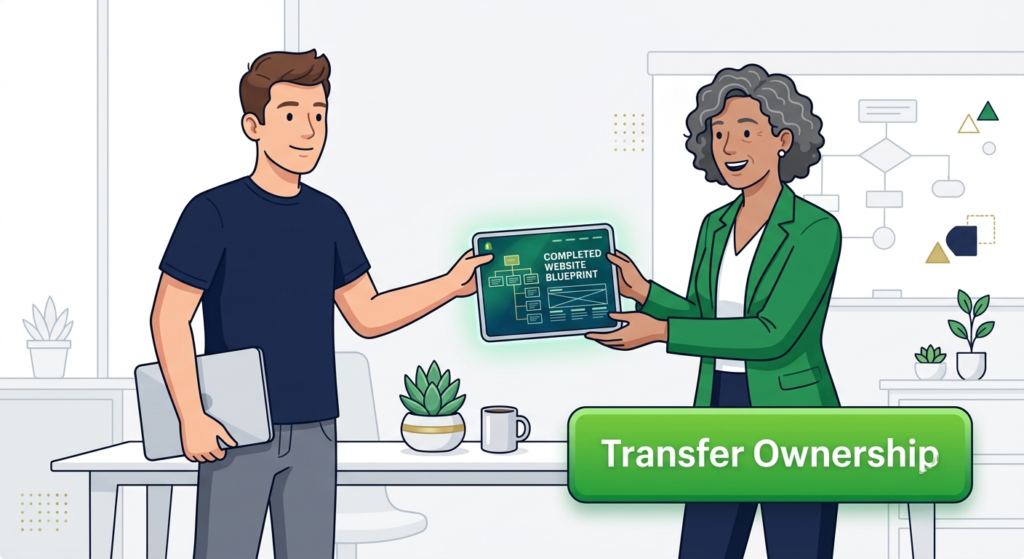
- Transferring or handing over stores: Once a development store is finished, you use the “Transfer ownership” feature in the dashboard to hand it over to the merchant. The merchant then selects a paid Shopify plan to make the store live.
- Managing development work responsibly: Always ensure you clearly distinguish between your sandbox development stores (where you can test freely) and live client stores (where mistakes can impact real customer sales).
Example: Giving a Shopify Developer Access to Your Store
To make this practical, let’s look at a realistic scenario of granting Shopify developer access.
The Scenario: You are a Shopify store owner running a successful clothing brand. You want to hire a freelance developer to do the following tasks:
- Customize the Shopify theme to match your new branding.
- Fix some minor Liquid, CSS, and JavaScript glitches on mobile devices.
- Install and configure a complex product review app.
- Improve the layout of the primary product page.
The Correct Approach: The developer asks for your login credentials so they can get started. Do not give them your password.
Instead, ask the developer to send a collaborator request via their Shopify Partner dashboard. Because of the nature of the work, the exact permissions should depend on the work being performed.
In this scenario, the appropriate limited permissions would be:
- Themes: So they can edit the Liquid, CSS, and JavaScript code.
- Online Store: So they can view the pages they are modifying.
- Products: So they can see how the product pages look and function with the new design.
- Apps: So they can install and configure the new product review app.
The developer does not need access to your Settings, Orders, Customers, or Analytics. By using collaborator access with strictly defined permissions, the developer gets exactly what they need to succeed, and you maintain complete security over your business data.
Best Practices for Giving Shopify Access
Maintaining a secure e-commerce environment requires vigilance. Follow these essential best practices when managing Shopify store access:
- Never share the store owner’s password unnecessarily: This is the golden rule of store security.
- Use individual accounts: Ensure every internal team member has their own distinct login.
- Use collaborator access for agencies/developers: External parties should always use the Partner system where appropriate.
- Give only required permissions: Practice the principle of least-privilege. Do not check every box just to be safe; check only the boxes the user strictly needs.
- Review existing users regularly: Audit your “Users and permissions” tab every quarter.
- Remove access when work is completed: If an agency finishes a project, or an employee resigns, revoke their access immediately.
- Use strong passwords and MFA: Require all staff to use Multi-Factor Authentication (MFA) to prevent unauthorized logins.
- Verify unfamiliar collaborator requests: If you receive a request from an agency you have never spoken to, reject it immediately.
- Avoid granting sensitive permissions without a reason: Be highly protective of the “Settings” permission, as it controls your billing and legal infrastructure.
Frequently Asked Questions
Clear answers to common questions about Shopify Collaborator Access, Shopify Partners, and secure store management.
Give access, not your password.
Shopify’s Partner and collaborator access system makes it easier to work with developers and agencies while keeping your store secure. Use permission-based access, avoid sharing passwords, and remove collaborator access whenever their work is complete.


unlocker.ai – The Ultimate AI Tool for Bypassing Restrictions and Unlocking Content Seamlessly!
I have been playing at this site for a few weeks now and the experience is just amazing. The slot games run super smooth on my phone and withdrawals are actually processed within the day. Really glad I found this place for my daily entertainment. Check it out yourself at botak123slot
Thông tin hữu ích quá. Letco tự hào là công ty tư vấn du học Hàn Quốc uy tín, cam kết đồng hành đến khi bạn nhập học thành công. Xem thêm tại letco.vn.
88ppbet, feels like a lucky number! Hoping for some serious payouts tonight. Tell me if you win big! Check it out at 88ppbet
Just had a look through 3363casino. Decent selection of games, from what I could see. Gonna spend some time there this weekend I think!: 3363casino
visit website where to get tartar removal in Kotor
экскурсия с пхукета экскурсия с пхукета
Use our Student Loan Calculator to estimate monthly payments, total repayment costs, payoff dates, and interest on your student loans. Enter your balance, interest rate, and loan term to see a clear repayment projection.
Student Loan Calculator
Check out this resource: Calculadora Roth IRA
Really impressed with the customer service here. They answered all my questions quickly and the gameplay is top notch. idbuas33